
This is an old revision of the document!
Table of Contents
Interactivity > Model Answer
A page that presents the learner with a box into which text can be typed, in response to an instruction or question. The user clicks on a Check Button, which reveals a model answer, for comparison with the learner's text.
Example demo
or view at Xerte Page Types > Interactivity: Model Answer (opens in new tab).
Editor Interface
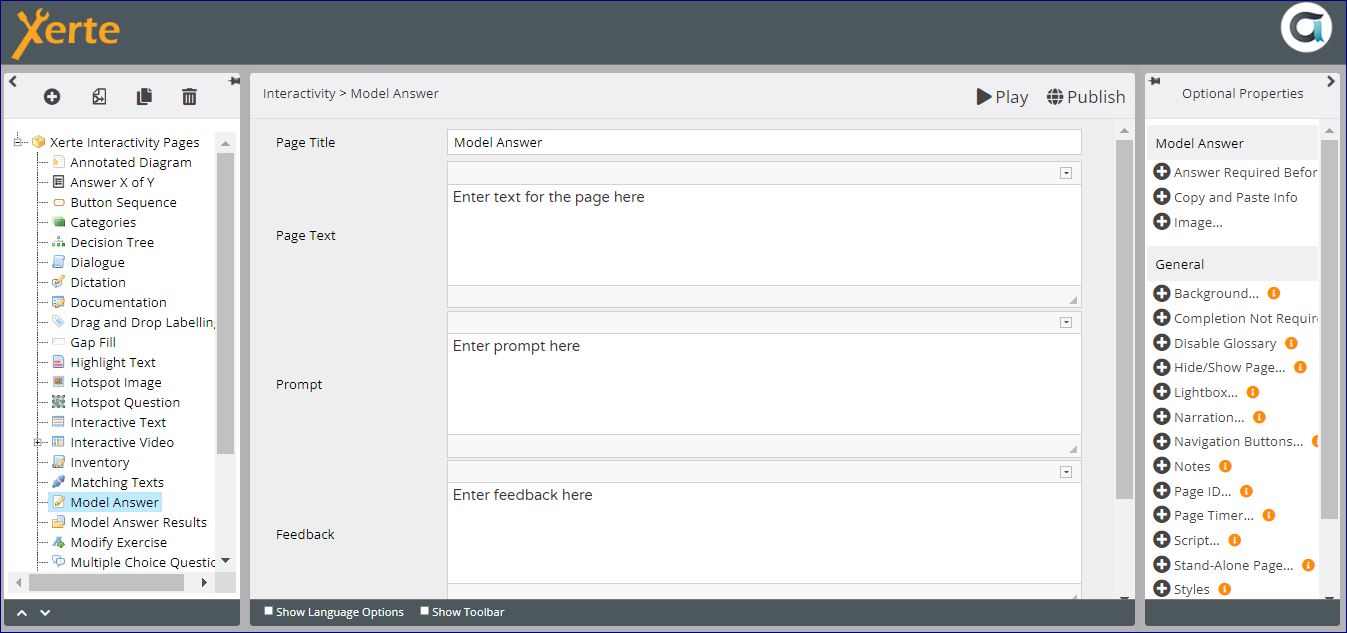
Core Properties
| Property | Description | Type | Additional information |
|---|---|---|---|
| Page Title | Text that appears in header of published page. | Text | |
| Page Text | Content that appears in the left pane or at the top of the page. | Text+ (Toolbar) | Use this to give the context or instructions for the task. Other content (e.g. images, audio, video) can be embedded here. |
| Prompt - Removed to each '+ New Text Area' in 3.15. | Text that appears above the text entry box. | Text+ (Toolbar) | This is typically an instruction or a question that the user answers by typing into the text entry box. |
| Feedback | Feedback revealed after hitting Feedback button. | Text+ (Toolbar) | |
| Panel width | {Small/Medium/Large/Full.} Dimension of the right panel (gapped text). | Drop-down | Full puts the Page Text above the gapped text. Experiment with this setting to take account of dimensions of content in each panel. |
| Align Text | {Left/Right} Position the page text on the left or right side. | Drop-down | New in 3.15. |
| + New Text Area .. | Used to create new text entry boxes for the learner to type into. | Link | New in 3.15. |
| Text Area: Label | The name used for tracking results of the specific text entry box. | Text | New in 3.15 |
| Text Area: Prompt | Text that appears above the text entry box. | Text+ (Toolbar) | New in 3.15 |
| Text Area: No. of Lines | The number of lines in the text entry box. | Number | New in 3.15 |
Optional Properties
Page-specific
| Property | Description | Type | Additional information |
|---|---|---|---|
| Answer Required Before Feedback - Updated to Require Answer in 3.15 | Check button is greyed out, and only works when the user types into the text box.When selected this requires that all text entry boxes on the page must have content before answers can be submitted. | Checkbox | |
| Copy and Paste Info - Updated to Copy Button in 3.5 | If added, reveals text (at the feedback stage) explaining how to select all the text on the page, and then copy and paste into another application (e.g. Word).Clicking the button allows users to easily select and copy their responses. | Text+Checkbox | |
| Image - Removed to each 'New Text Area' in 3.15. | Allows an image to be added, which appears between the prompt and the text entry box. There are no image resizing or relocation options. | ||
| Download Button: Include button: | Select to make button appear on the page that will allow learners to download their responses. | Checkbox | New in 3.15 |
| Download Button: Filename (without extension) | Gives the option to rename the file download. {model_answer} | Text | New in 3.15 |
| Download Button: File orientation | Gives the option to display in portrait or landscape {Portrait/Landscape) | Drop-down | New in 3.15 |
| Mark Answer | Select this option to enable tracking of the score weight. | Checkbox | New in 3.13. |
| Tracking Score Weight | Customise the weight of the task on this page, relative to other scored pages in the project. Setting the weight to 0 will mean that the task on this page will not contribute to the project's overall score. | Number | New in 3.13. |
General
Language Options
Most of the Language Options for this page relate to the copy feature.
| Property | Description | Type | Additional information |
|---|---|---|---|
| Page Text | New in 3.15 | ||
| Question Text | New in 3.15 | ||
| Feedback Text | New in 3.15 | ||
| Main Feedback Text | New in 3.15 | ||
| Copy Button Label | Customise the {Copy} button. | New in 3.15 | |
| Check Button Label | Text on button that reveals model answer. {Feedback} | Text | Default changed to {Submit} in 3.15 |
| Download Button Label | Customise the {Download} button. | New in 3.15 | |
| Instruction Header (a) - Deprecated in 3.15 | For Copy and Paste: text that appears at the top of the selected text. The Xerte project page number is automatically inserted after this text | Text | Default -“The instruction and question on page” |
| Instruction Header (b) - Deprecated in 3.15 | For Copy and Paste: text that prefaces the Prompt. | Text | Default - “was:” |
| Response Header - Updated to Response Text in 3.15 | For Copy and Paste: text that prefaces the user's response. {Your response was:} | Text | Default changed to {Your response:} in 3.15 |
| No Answer Header - Updated to No Answer Text in 3.15 | For Copy and Paste: text that indicates no answer has been attempted. {You didn't answer this question.} | Text | Default changed to {No response submitted} in 3.15 |
| Example Header - Deprecated in 3.15 | For Copy and Paste: text that prefaces model answer. | Text | Default - “The example answer was:” |
| Select Button Label -Deprecated in 3.15 | For Copy and Paste: allows “Select Text” button (which initiates copy and paste process) to be customised. | Text | Default - “Select Text” |
| Copy Shortcut Text | For Copy and Paste: allows instruction in the header of the selected text pop-up to be customised. {Press Ctrl+C to copy} | Text | |
| Answer Field Hidden Aria-Label | Hidden label for screen reader so that the text entry is labelled and spoken to the user. {Answer} | Text | There is a Tooltip for this. |
Further information
This page can be tracked.
New in version 3.15 the learner can complete the task and download their response and the feedback, similar to the Documentation page. This generates a Word document as output, without the learner having to separately copy and paste into a document.
You may want to make a clearer distinction between the text provided in the task (i.e. the Prompt and Feedback) and the learner's response, by using italics or a different font for the Prompt and Feedback.