
Table of Contents
Overview
The AI Assistant is available for a large number of Xerte pages. In most cases, the AI Assistant contains inputs specific to that page and as such each AI Assistant is different. However, several settings are identical across all AI Assistants. We refer to these as Base AI Generation Settings and are explained on this page.
If you're interested in learning more about the AI settings of a specific page, as well as tips on how to configure the Base AI Generation Settings for these pages, please visit AI Assistant Per Page.
Base AI Generation Settings
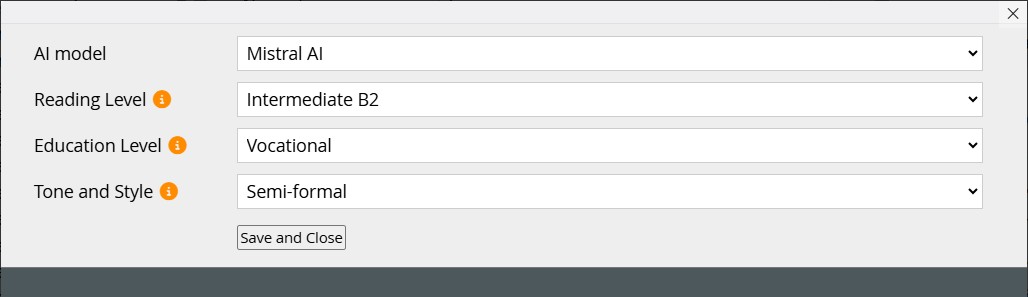
Many interactivities that support automatic content generation use the same core settings. Their default values can be set at the learning object level by opening the Base AI Generation Settings assistant property.

Reading Level
Reading Level helps the model decide how complex the generated language should be.
You can use:
- simple descriptors, such as
basic English,beginner English, orAdvanced Dutch - level-based values, such as
C1 Level English - combined values, such as
Basic English A2 level
You can also add extra descriptors for more control. For example:
A2 Level Beginner English, encountering words on this subject for the first timeA2 Level Beginner English with advanced knowledge of [subject] terminology
This setting is available at the learning object level, where you can choose a dropdown value or enter a custom one.
It can also be set per page. To do this, enable Show Advanced Options and enter a custom value there.
Education Level
Education Level helps the model judge the difficulty of the generated content.
You can use:
- age ranges
- school levels
- professional or practical backgrounds
Examples:
University, advanced knowledge of subjects relating to mathsproduces more challenging contentMiddle schoolproduces less challenging contentMiddle school, no knowledge of subjectlowers the difficulty further
This setting is available at the learning object level, where you can choose a dropdown value or enter a custom one.
It can also be set per page. To do this, enable Show Advanced Options and enter a custom value there.
Tone and Style
Tone and Style tells the model what kind of writing style to use.
Examples:
Formalsuits professional contextsSemi-formal, activemay feel more approachable for studentsSemi-formal, active, excitedproduces more enthusiastic content
You can also request more specific styles, although results may be less consistent. For example:
as if spoken by a radio hostShakespearean
This setting is available at the learning object level, where you can choose a dropdown value or enter a custom one.
It can also be set per page. To do this, enable Show Advanced Options and enter a custom value there.
Additional Instructions
Additional Instructions is an optional catch-all field available in most interactivities.
Use it when the standard fields are not enough to describe what you want. For example, when creating flashcards about birds, you could specify that the generated content should focus on:
- bird anatomy
- colours
- physical characteristics of bird species
There is no fixed limit to this field, so you can be as detailed as needed.
Because this field accepts almost any kind of instruction, not every possible input combination can be tested. If generation gives unexpected results, try changing this field or temporarily leaving it empty.
Information Source
Information Source lets you choose what the model should use as context for generation.
Available options include:
- Single File (Limited Scope) – upload a file directly, and use that file as context for this generation
- using all context resources – use every file which has already been processed as context for this generation
- using the learning object itself – use the information in your latest learning object preview as context for this generation
Single File (Limited Scope)
When you upload a file directly in Information Source, the model will try to use only that file as its source.
This means the scope is limited to the specific file selected for that interactivity.
Learning Object
Using the learning object itself as context is useful when you want to generate content from material already added to the learning object, such as making a quiz based on text pages.
When selected, the system saves the current state of the learning object as if you had clicked Preview. This does not publish the learning object. That saved state is then used as context for generation.
All Context Resources
If you want to use multiple files, select All Context Resources.
This option uses all files synced at the learning object level in the AI Context Resources/Links table, found in the AI Context Management assistant which can be accessed on the learning object level. This table contains all of the files which have already been synced and are ready to use as AI context.
See the AI Context Management section for more information.
AI Context Management
AI Context Management is a learning object-level feature for organising files used as context for generated interactivities.


Adding Files
To add a file, create a new entry in the grid using the plus icon.
Entries can be:
- YouTube links
- Vimeo links
- PeerTube links
- uploaded files for AI use (see single file upload section for supported sites and file types)
To upload a file, use Import Media.
These AI files are separate from normal media files.
You can also add:
- a name (Title)
- a note (Description)
These are only for your own organisation. They are not used by the model during generation.
After submitting an entry, the file may take a few minutes to process.
Syncing and Refreshing
Each time you open the page or change the table, it refreshes and shows all successfully synced files.
If a file does not appear after syncing, try adding it again.
Deleting Processed Files
To remove processed files linked to an entry, delete the associated row by selecting it, then using the trash icon.
You may need to wait briefly while the system removes the files.
Once an entry has been successfully processed and synced, you can delete the original uploaded file to save storage space, as long as you do not delete the entry itself from the table.
This is especially useful for large files such as videos.
Deleting Original Uploaded Files
To delete the original uploaded files, open the Import Media window while adding a new row and delete them there.
A dedicated overview for corpus files in the project properties window is planned for a future update.
Using Context Files in Generation
To make the model use these files as context, go to Information Source in the AI settings of each page and select one of the following:
- Use Context Resources to use all synced context files
- Single File (Limited Scope) to use one specific file
This will ensure that all of the synced files in the AI Context Resources/Links table are considered for that particular generation.