Table of Contents
Interactivity > Button Sequence
A page that includes a series of buttons which reveal text after each one is clicked on. The buttons are presented one by one, so that the second button, for example, is only presented after the first button is clicked on and text relating to that button revealed. Similar page types;
- Simulating Question - just presents one button.
- Model Answer - offers a text box into which the user types a response, before clicking on a button to reveal a model answer.
Example demo
or view at Xerte Page Types > Interactivity: Button Sequence (opens in new tab).
Editor Interface
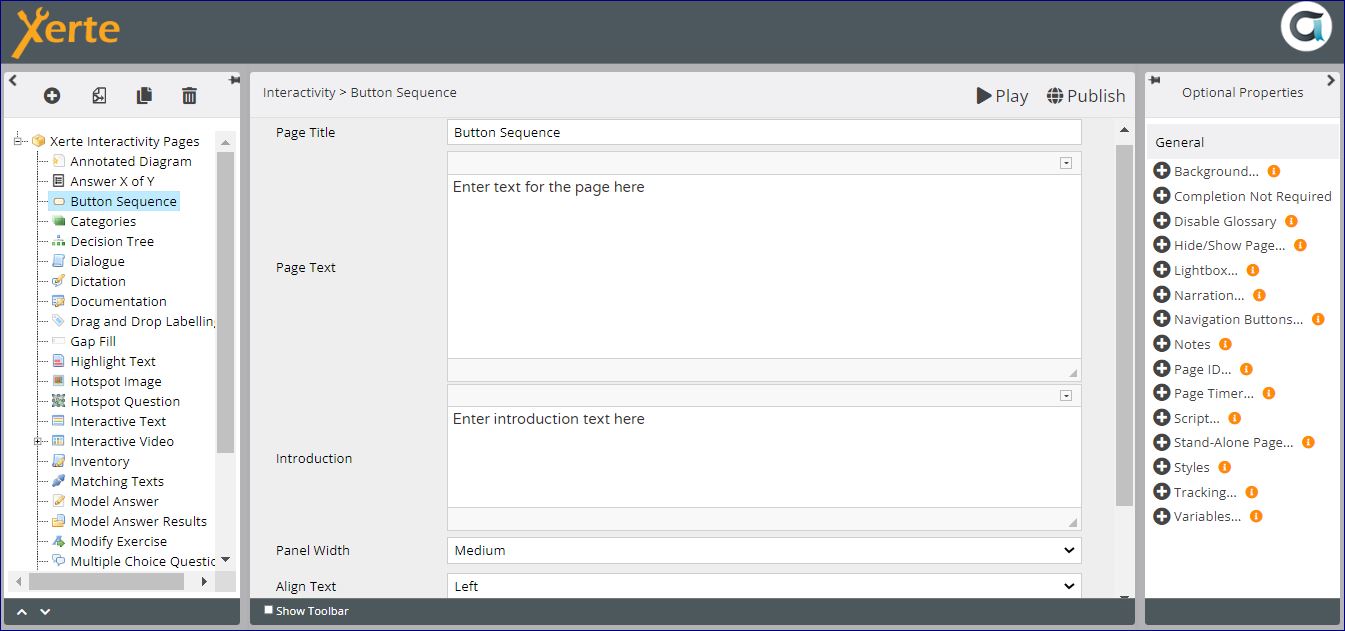
Top Level: Core Properties
| Property | Description | Type | Additional information |
|---|---|---|---|
| Page Title | Text that appears in header of published page | Text | |
| Page Text | Content that appears in the left pane or at the top of the page (depending on Align Text - see below) | Text+(Toolbar) | Use this to give the context or instructions for the task. Other content (e.g. images, audio, video) can be embedded here. |
| Introduction | Text that appears above the first button | Text+ (Toolbar) | This text appears immediately above the Check button. |
| Panel Width | Dimension of the right panel (which includes the Question, the Check button and the Feedback) | Drop- down | Choose from {Small/Medium/Large/Full}. Full puts all the content in one pane. Experiment with this setting to take account of dimensions of content in each panel. |
| Align Text | Swaps round the right and left panes {Left/Right} | Drop- down |
Top-Level: Assistants
This section describes the assistant properties available at the top level of the Button Sequence page type.
Page-specific
| Property | Description | Type | Additional information |
|---|---|---|---|
| AI Assistant | Generates quiz questions, answer options, correct answer settings, and feedback based on a defined subject. | AI Assistant | See Button Sequence: AI Assistant for page-specific settings. For shared AI Assistant settings, see AI Assistant Common Properties. |
| Quick Fill | Creates multiple sub-pages at once using default values. | Non-AI Assistant | See Quick Fill for more details. |
General
| Property | Description | Type | Additional information |
|---|---|---|---|
| Image Search and Help Tool | Supports royalty-free image search and AI image generation. | AI / Non-AI | See Image Search and Help Tool for a full overview. |
Top Level: Optional Properties
Page-specific
None
General
Top Level: Language Options
None
Click on New Button to add button and feedback.

Button: Core Properties
| Property | Description | Type | Additional information |
|---|---|---|---|
| Button Label | The text that appears in the button. | Text | Default - “Show More” |
| Feedback | The text that is revealed after clicking on the button. | Text+ (Toolbar) |
There are no Optional Properties or Language Options for Buttons.